
When creating the Art Practitioner’s Guide to Generative AI series, we had to move quickly and efficiently given the urgency of the subject matter. We also aimed to prevent the cost of a paid ChatGPT account from being a barrier to the technology for artists. Because of these reasons, we initially concentrated on text-to-text generation only.
But it’s important to know that ChatGPT isn’t just about text. It now offers a multi-modal approach, utilizing diverse forms of communication like voice and image inputs and outputs alongside text. This means artists aren’t limited to typing their queries; they can also speak to ChatGPT or use visual cues as inputs.
The new multi-modal capabilities of ChatGPT mark a significant milestone in AI development. Everyone learns and absorbs information differently—experiment to find what works best for you.
In terms of output, ChatGPT can generate not just text, but also images.
Fortunately, the thought process for crafting prompts, as detailed elsewhere in the guides, applies to these other forms of input as well.
Please note that accessing the following features may require a paid ChatGPT account.
ChatGPT’s Initial Text-to-Text Capabilities
Initially, ChatGPT launched with the ability to craft text-based responses only. This text-to-text interaction opened new doors for artists, ranging from generating performance enhancing techniques, to advice on securing musical engagements, to ideas for improving theater audience engagement. However, the technology had, and has, its limitations, particularly in terms of engaging artists who sought more interactive and varied forms of communication.
New Input Options
ChatGPT now accepts voice commands and image inputs, making it more accessible and convenient. This feature is especially useful for users who find typing cumbersome or have visual impairments.
To utilize voice prompts with ChatGPT, artists should follow these steps:
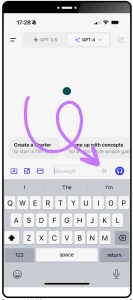
- Ensure that your device has a microphone and that it’s enabled.
- Access ChatGPT with a tool or application that supports voice interaction, such as an official OpenAI app or a third-party app designed to work with ChatGPT.
- Log in to your ChatGPT account. Once you’re logged in, look for the microphone icon on the app or platform interface. This is usually a symbol resembling a microphone and can be found in a prominent spot, like the bottom center of a mobile app screen or in the app’s search bar.
- Tap or click the microphone icon to activate voice input. If it’s your first time using this feature, your device might ask for permission to use the microphone. Make sure to allow it.
- When the microphone icon becomes active, often indicated by a color change or animation, speak to ChatGPT clearly and conversationally. For example, say, “Create a photoshoot checklist,” and ChatGPT will process your spoken request.
ChatGPT will then respond to your voice prompt with the appropriate output, whether that’s in text form, an image, or information retrieved from the internet.
To use image inputs with ChatGPT, artists should follow these steps:
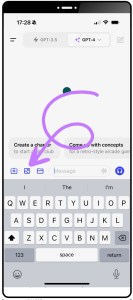
- Verify that your device is capable of uploading images, which may involve having a camera or a stored image gallery.
- Open a tool or application that supports image input functionality with ChatGPT, such as an official OpenAI app or a compatible third-party app.
- Log into your ChatGPT account to access the full range of features.
- Locate the image upload icon, which is typically represented by a camera or picture symbol. It’s usually found within the chat interface or near the input field.
- Click or tap on the image upload icon, which will prompt you to select an image from your device. On mobile devices, you may have the option to take a photo directly or choose one from your gallery. On desktop platforms, you’ll likely need to browse your files to select an image.
- Once you’ve selected the image, confirm the upload. The app may provide an on-screen confirmation that the image is being processed.
ChatGPT will analyze the uploaded image and provide a response based on its content and your request. Remember, ChatGPT can make mistakes. Consider checking important information.
Image Output Capabilities
As you can tell from the previous examples, beyond generating text ChatGPT can produce images, enabling the quick visualization of ideas and concepts.
To get a visual output from ChatGPT, follow the login steps from above and clearly request an image in your prompt as the desired output.
Experiment
The new multi-modal capabilities of ChatGPT mark a significant milestone in AI development. Everyone learns and absorbs information differently—experiment to find what works best for you.
By Natalie Diggins, Technologist and Founder of TheArts.ai
Proofreading by ChatGPT-4.